Cloud
How do I stop OneDrive from syncing Desktop?
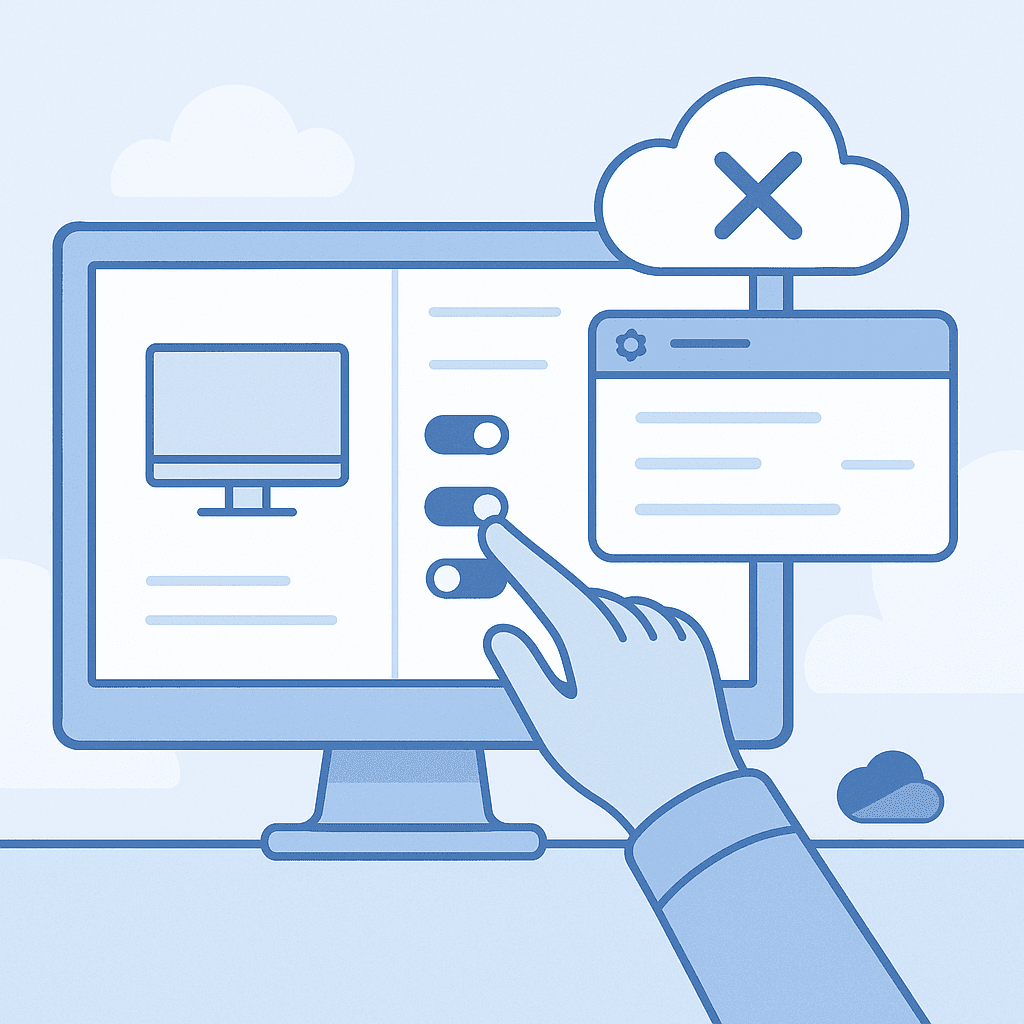
Quick answer
To stop OneDrive from syncing your Desktop on Windows, click the OneDrive cloud icon in the system tray, go to 'Settings,' select the 'Backup' tab, and turn off the Desktop folder under 'Manage backup.'
Learn how to prevent OneDrive from syncing your Desktop folder by adjusting settings within the OneDrive application on Windows.
Steps
- 1
Open OneDrive Settings
Click on the OneDrive cloud icon in the system tray and select 'Settings.' If the icon is not visible, click the up arrow to show hidden icons.
- 2
Access Backup Settings
In the OneDrive settings window, click on the 'Backup' tab.
- 3
Manage Backup
Select 'Manage backup' to view the list of folders currently being synced.
- 4
Turn Off Desktop Sync
Toggle off the Desktop folder to stop syncing it with OneDrive. Confirm the action if prompted.
- 5
Confirm Changes
Click 'OK' or 'Apply' to save your changes and stop syncing the Desktop.
Introduction
OneDrive automatically syncs key folders like Desktop, Documents, and Pictures to the cloud. If you prefer to manage your Desktop files locally, you can disable this feature through OneDrive settings.
Why Stop Syncing the Desktop?
Stopping Desktop sync can help conserve OneDrive storage space and prevent large files from being uploaded automatically, which is useful if you have limited cloud storage or prefer local backups.
Troubleshooting
If you encounter issues stopping the sync, ensure your OneDrive app is up-to-date. Check for any sync errors or permission issues that might prevent changes.
Watch out for
- Changes may take a few minutes to apply.
- Ensure you have the latest version of OneDrive for the best experience.
- UI paths may vary slightly depending on Windows updates.
FAQ
Will my Desktop files be deleted from OneDrive?
No, turning off sync will not delete existing files from OneDrive. It will only stop new files from being uploaded.
Can I re-enable Desktop syncing later?
Yes, you can re-enable syncing by following the same steps and toggling the Desktop folder back on.
Does this affect other folders like Documents or Pictures?
No, this change only affects the Desktop folder. Other folders will continue to sync unless you adjust their settings.