Web
How do I stop Chrome from asking to save passwords?
Quick answer
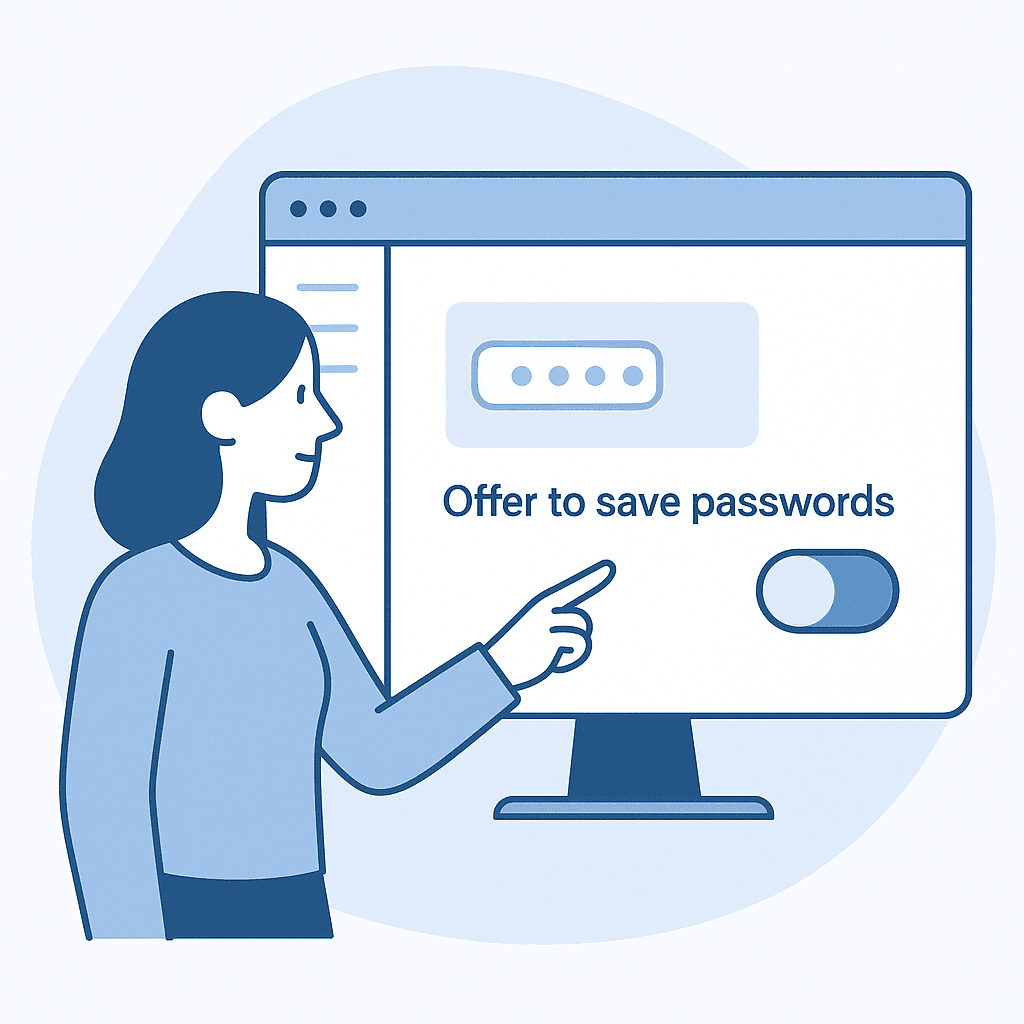
To stop Chrome from asking to save passwords, open Chrome Settings, go to 'Autofill', select 'Passwords', and toggle off 'Offer to save passwords'.
Prevent Chrome from prompting to save passwords by adjusting the settings in the Password Manager, enhancing your browsing privacy.
Steps
- 1
Open Chrome Settings
Click on the three-dot menu in the top-right corner of Chrome and select 'Settings'.
- 2
Navigate to Autofill
In the left sidebar, click on 'Autofill'.
- 3
Access Passwords
Under Autofill, click on 'Passwords'.
- 4
Disable Save Passwords Prompt
Toggle off the option labeled 'Offer to save passwords'.
Introduction
Google Chrome offers a feature to save passwords for ease of access, but you can disable this if you prefer not to store passwords in your browser.
Benefits of Disabling Password Saving
Turning off password saving can improve security, especially on shared devices, by reducing the risk of unauthorized access to your accounts.
Considerations for Password Management
Explore using dedicated password managers like LastPass or 1Password for enhanced security and cross-platform functionality.
Watch out for
- Menu options may vary slightly depending on the Chrome version.
- Disabling this feature does not affect passwords already saved in Chrome.
FAQ
Will this affect saved passwords?
No, disabling the prompt will not delete any passwords already saved in Chrome.
Can I re-enable the prompt later?
Yes, you can re-enable the prompt by toggling 'Offer to save passwords' back on in the Password Manager settings.
Does this setting sync across devices?
Yes, if you are signed into Chrome, this setting will sync across all devices where you use Chrome.