Printers
How do I print from an iPhone?
Quick answer
To print from an iPhone, ensure your printer is AirPrint-compatible and connected to the same Wi-Fi network as your iPhone. Use the Share icon in an app to access the Print option.
Printing from an iPhone is straightforward with AirPrint-compatible printers. Follow the steps below to print documents or photos directly from your device.
Steps
- 1
Open the Document or Image
Launch the app containing the document or image you want to print.

Opening the document or image to print. - 2
Access the Share Menu
Tap the Share icon (a square with an upward arrow) typically located at the bottom of the screen.
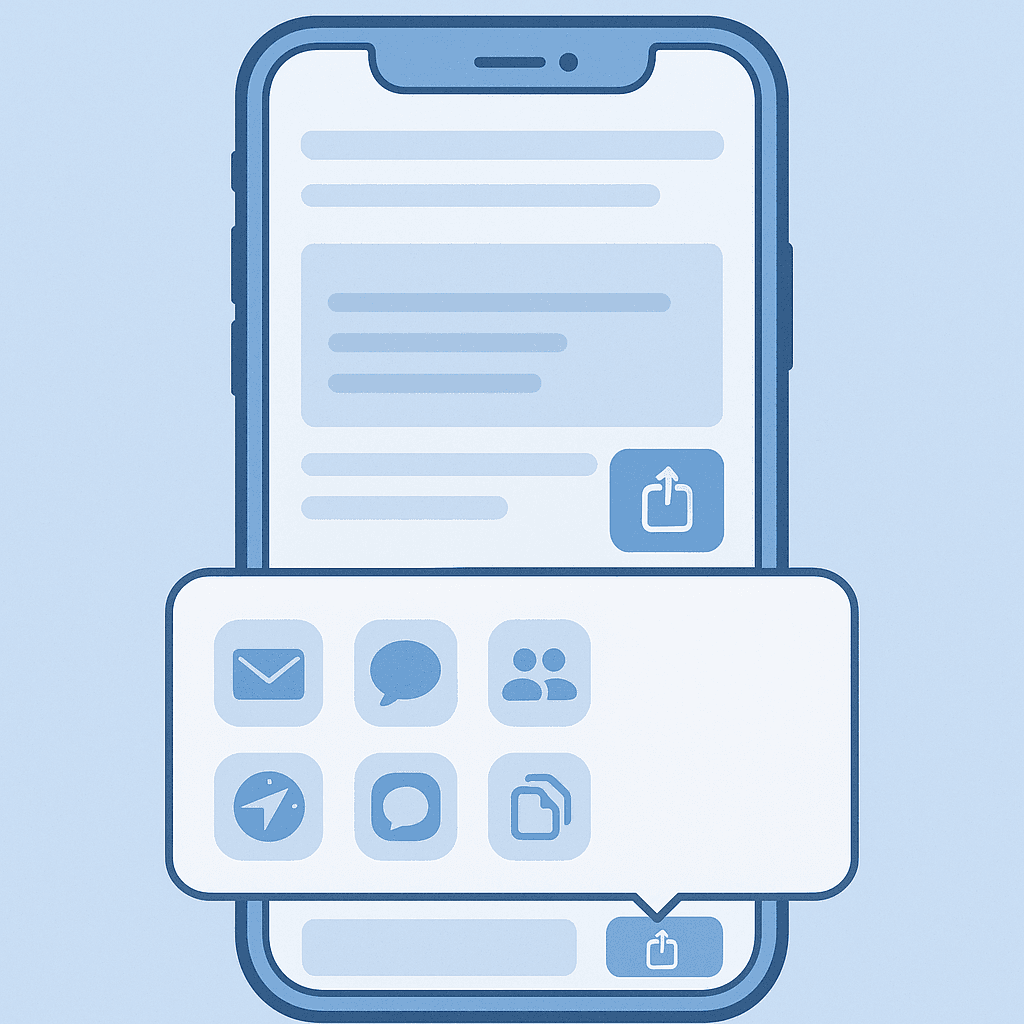
Accessing the Share menu on your iPhone. - 3
Select Print
Scroll down and select 'Print' from the options.
- 4
Choose Your Printer
Tap 'Select Printer' and choose your AirPrint-enabled printer from the list.
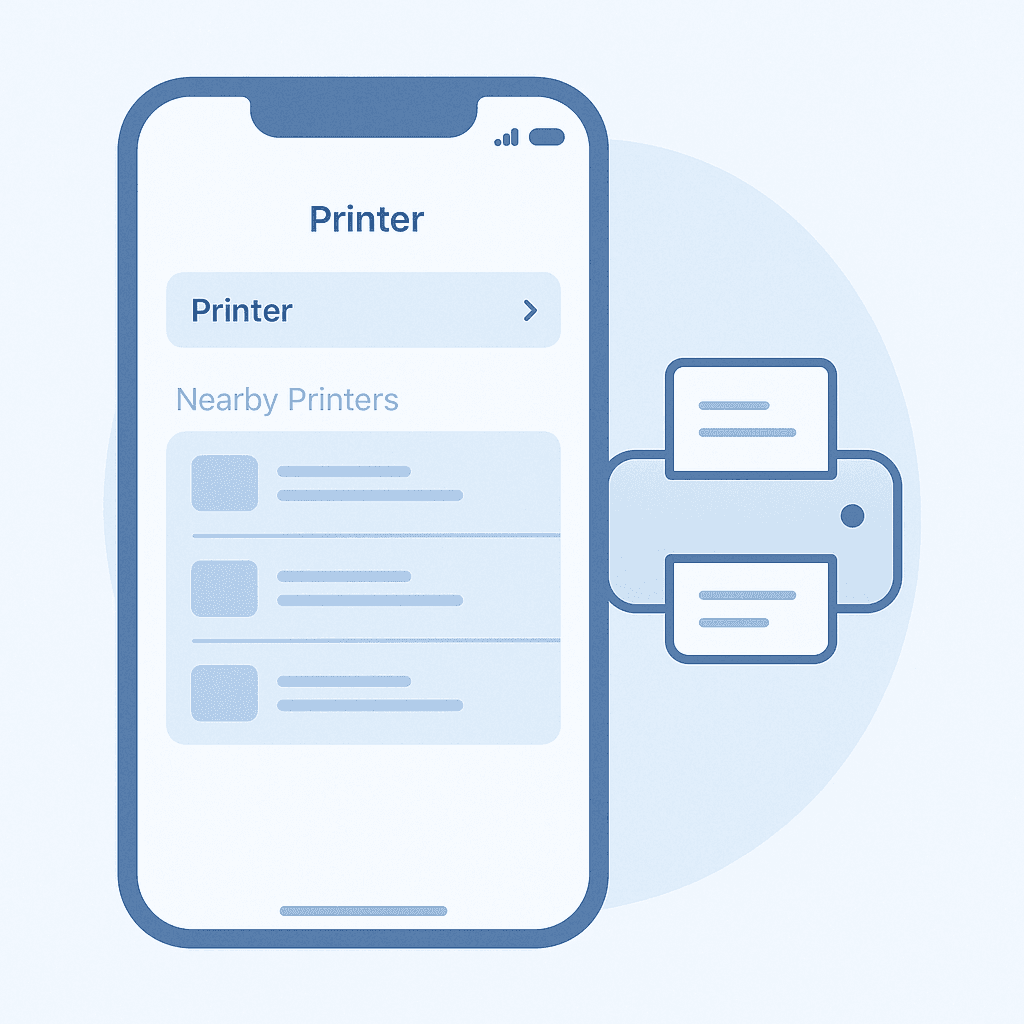
Choosing your AirPrint-enabled printer. - 5
Adjust Print Settings
Set the number of copies, page range, and any other options, then tap 'Print' in the top right corner.
Getting Started with AirPrint
AirPrint is Apple's built-in printing solution that allows you to print wirelessly from your iPhone. Make sure your printer supports AirPrint and is connected to the same Wi-Fi network as your iPhone.
Steps to Print from Your iPhone
Follow these steps to print documents or images from your iPhone.
Watch out for
- Not all printers support AirPrint, so check your printer's specifications.
FAQ
What should I do if my printer is not appearing?
Ensure your printer is turned on, connected to the same Wi-Fi network as your iPhone, and supports AirPrint.
Can I print from any app?
Most apps that support document sharing will allow you to print, but some may not have the Print option available.
What if my printer does not support AirPrint?
You may need to download the printer manufacturer's app, which often provides printing capabilities for non-AirPrint printers.